Section outline

    • MicroController Project
       
      1. Learn About MicroControllers
         (small computers - Measure and Control)

      2. Learn to Control an Arduino MicroController

      3. Use an Arduino to Operate a Sumo Wrestling Robot


      In Class:

      Intro to MicroControllers - Mr. Rich

      Comic Strip - Pg 1 - 9
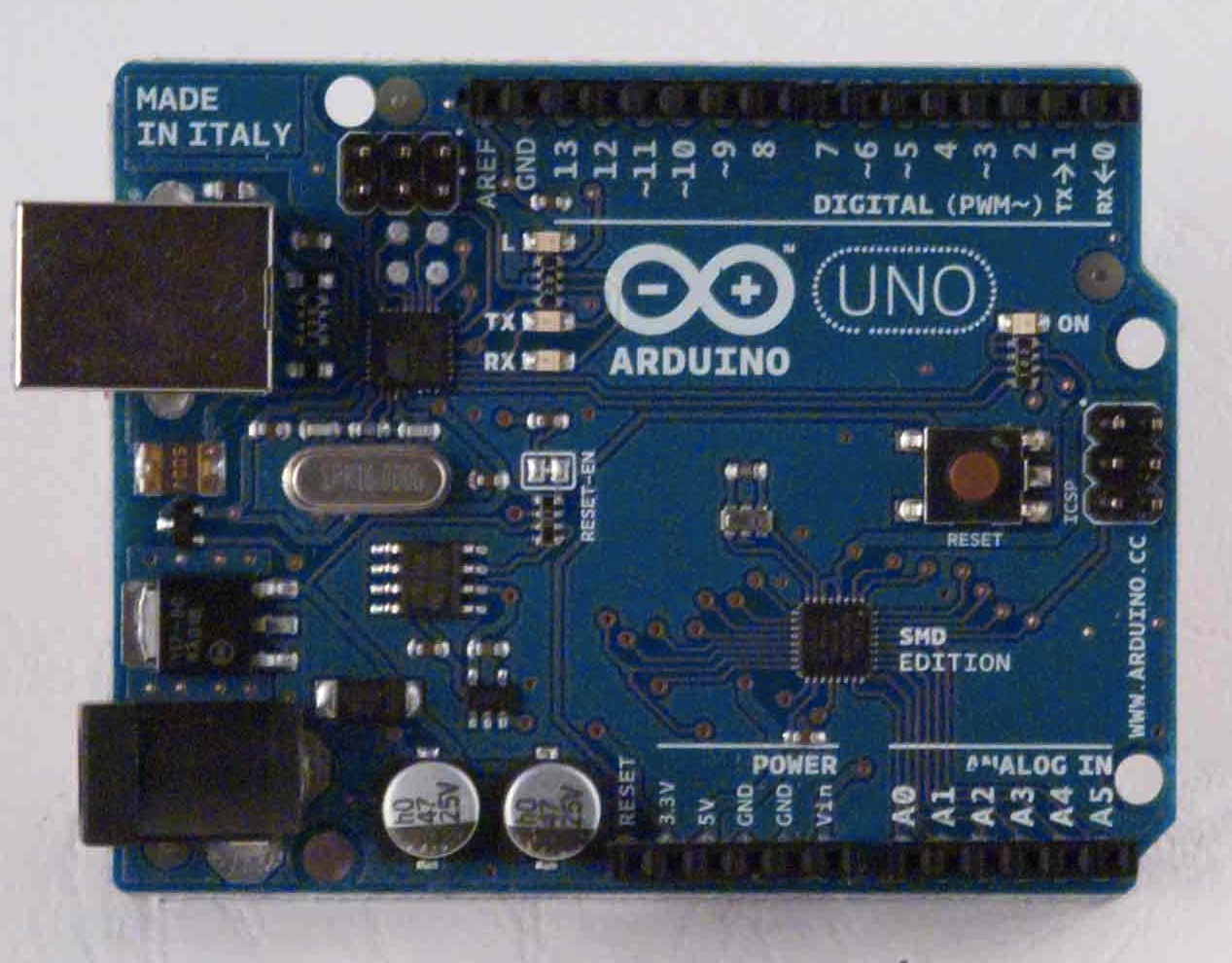
      Running your first program (sketch) - Blink
       
       
    • Demo: Blink


      Google Classroom:

      Link

      Coding App:

      BCS Arduino Cloud

      Assignment #1:
      Load Blink
      Save Blink as SOS

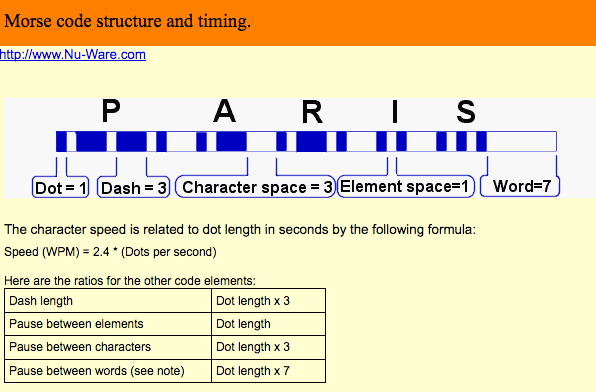
      Modify the code to blink 3 shorts - 3 longs - 3 shorts (Morse Code for S-O-S)
      Modify the code to blink Your Name in Morse Code
       
      note: make a short = 200ms
       
      Turning in Sketches to Google Classroom:
       
      To add your Arduino code directly to an assignment in Google Classroom, you can use the Share to Google Classroom button built directly into the Arduino Cloud Editor. This integration requires an active Arduino Cloud School Plan. [1, 2, 3]
      How to Turn in Your Sketch (For Students)
      Open your project: Log in to the Arduino Cloud and navigate to the Sketches tab to open the code you want to submit. [1, 2]
      Add documentation (Optional): If your teacher requested images, schematics, or project reports, you can attach them directly to your sketch inside the Cloud Editor. [1, 2]
      Click Share: Look for the Share to Google Classroom button located within the editor panel. [1]
      Choose your assignment: A Google Classroom pop-up window will appear. Select your specific class and the corresponding assignment from the dropdown list.
      Submit: Click Turn In (or Submit) to link your live Arduino sketch directly to your teacher’s gradebook. [1]


    • Assignment:

      With the Blink Sketch as a pattern, write a sketch that sends morse code to pin 13 (LED) of your first, middle and last name. 



      Morse Code
      Morse Code Timing 

Accessibility

Background Colour Background Colour

Font Face Font Face

Font Kerning Font Kerning

Font Size Font Size

1

Image Visibility Image Visibility

Letter Spacing Letter Spacing

0

Line Height Line Height

1.2

Link Highlight Link Highlight

Text Colour Text Colour